
How to Create a Responsive Pricing Table in Systeme.io (No Coding)
How to Create a Responsive Pricing Table in Systeme.io (No Coding)
Build professional, responsive tables for your Systeme.io pages in minutes – without writing a single line of code.
Here is the table builder btw: Systoolbox Pro.
If you're building an asset to earn passive income using Systeme.io, you've probably needed to display:
Pricing plans
Feature comparisons
Product specifications
Service packages
And the native Systeme.io editor... well, it gives you text and images. Tables? Not so much. And it's frustrating.
You could try copying a table from Google Docs or Word, but it usually breaks. You could write HTML from scratch, but wow, that's time-consuming and frustrating – especially if coding isn't your thing.
There's a better way.
Let me show you how to create a beautiful, responsive pricing table in under 5 minutes using Systoolbox Pro – and the best part? I built this very table using the tool itself.
What We're Building Today
By the end of this tutorial, you'll have a professional pricing table like this:
| Plan | Price | Features | CTA |
|---|---|---|---|
| Starter | $19/mo | 5,000 contacts, 3 funnels, Email automation | Start Free Trial |
| Professional | $49/mo | 25,000 contacts, 10 funnels, Webinars | Start Free Trial |
| Business | $99/mo | 100,000 contacts, Unlimited funnels, Advanced analytics | Start Free Trial |
| Enterprise | Custom | White-label, dedicated support | Contact Sales |
Fun fact: I built this exact table using the Table Builder tool. You'll see how in a moment.
What We're Building Today
A Systeme.io account (free or paid – doesn't matter)
Access to Systoolbox Pro (it's free, no sign-up required)
About 5 minutes of your time
Step-by-Step Tutorial
Step 1: Open Systoolbox Pro
Navigate to the Systoolbox Pro tool page using this link: Systoolbox Pro Tools.
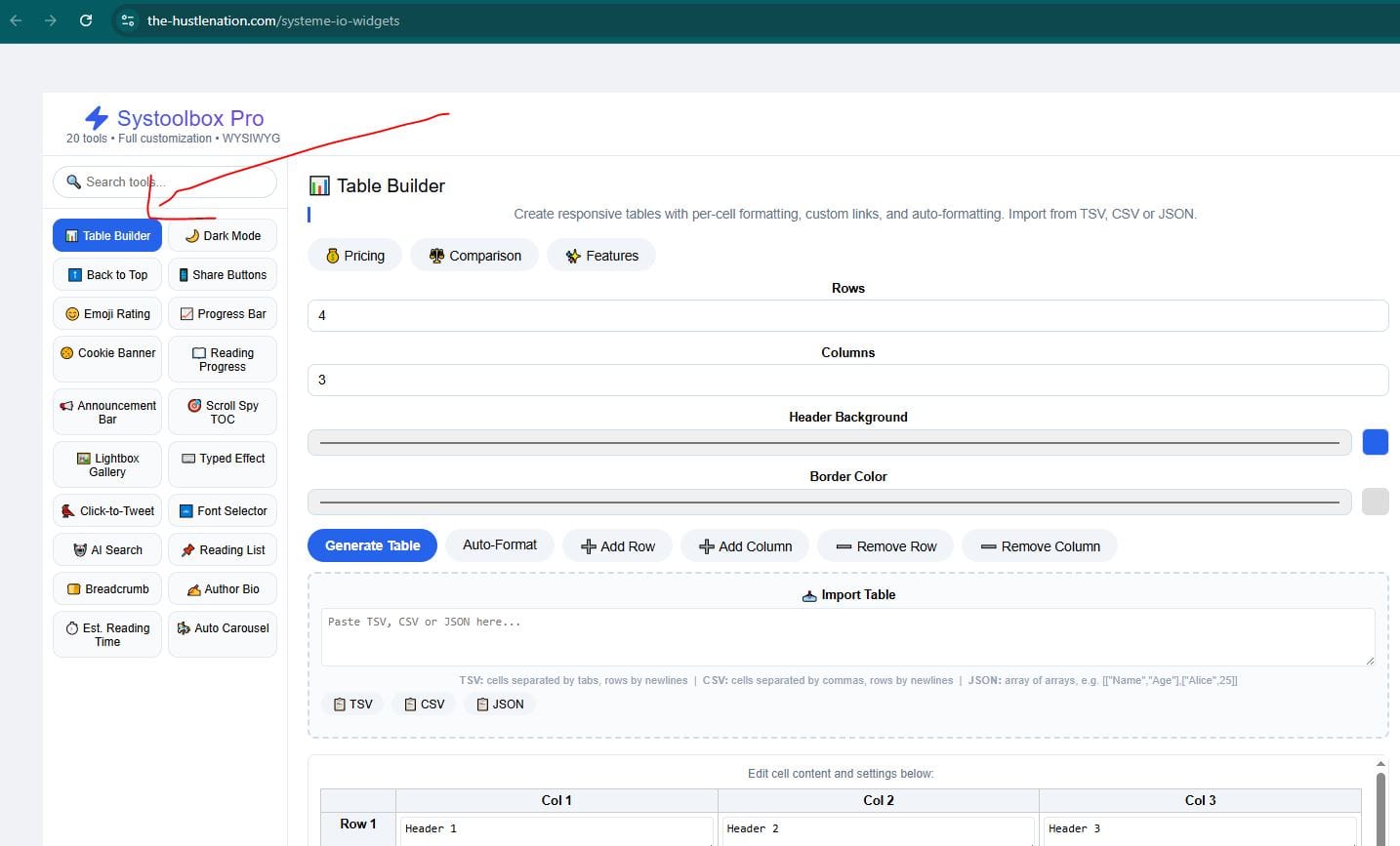
From the sidebar, click on "Table Builder".
You'll see the Table Builder interface with:
A settings panel on the left
A table editor in the middle
A live preview on the right
Step 2: Set Your Table Dimensions
In the settings panel, you'll see two fields:
Rows – how many rows you need
Columns – how many columns you need
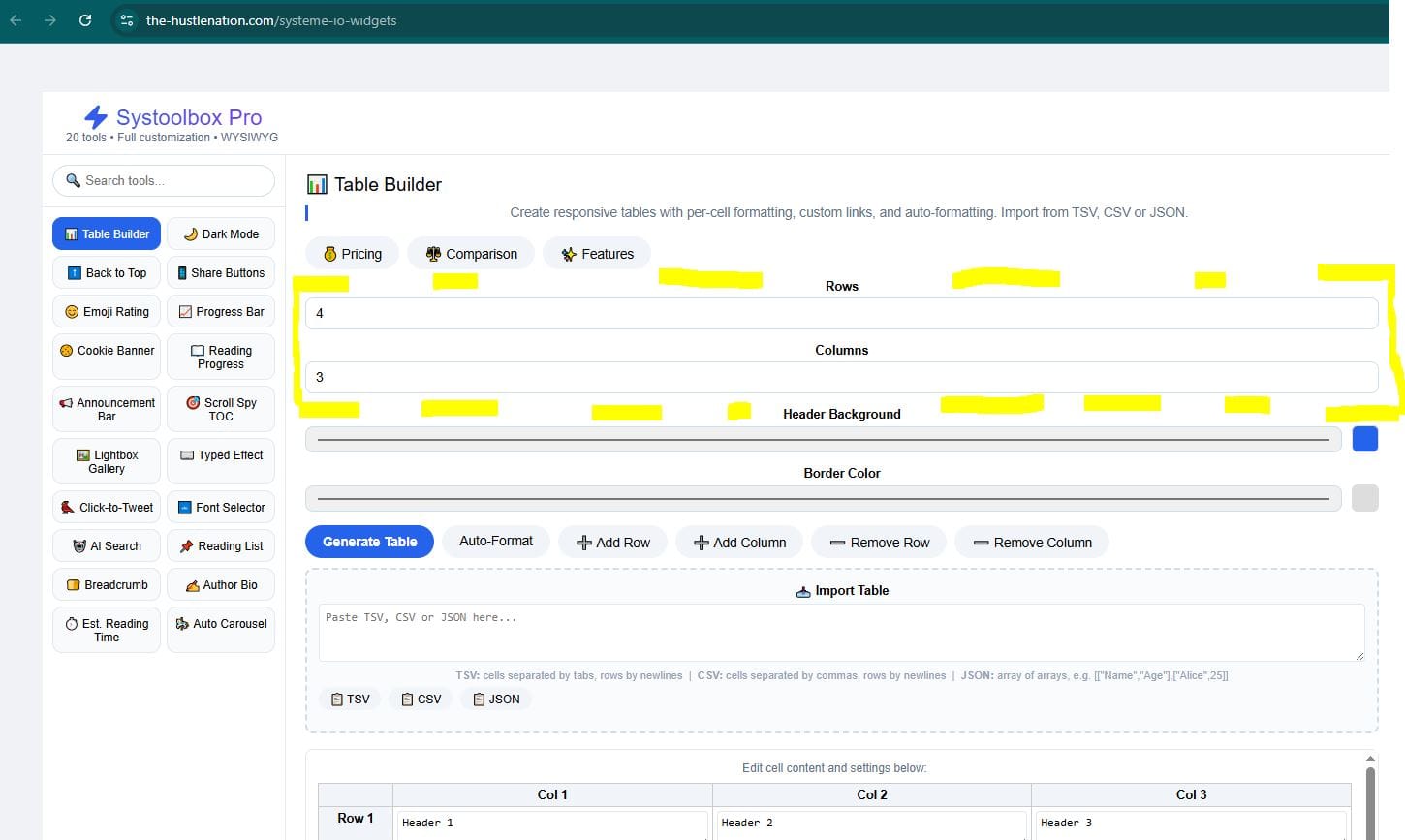
For a pricing table, we want:
Rows: 5 (header + 4 plans)
Columns: 4 (Plan, Price, Features, CTA)
Set these values and the table editor will update automatically.
Step 3: Fill In Your Data
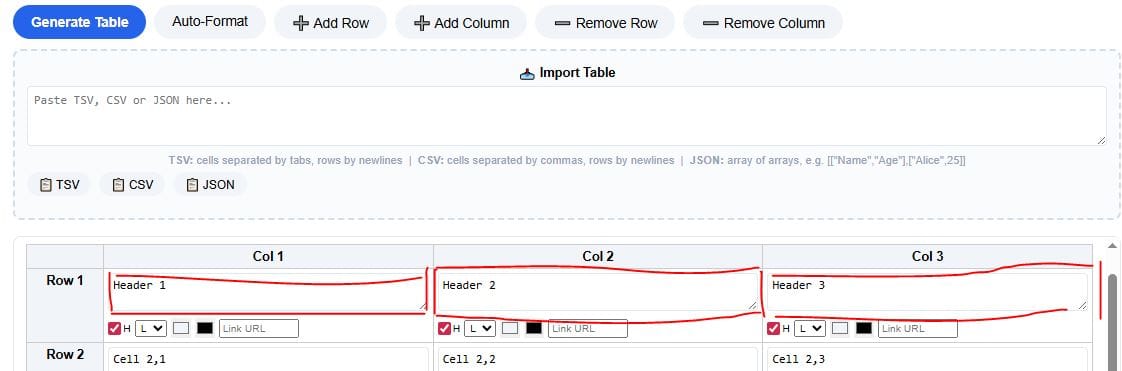
Now scroll down to the Table Editor section. You'll see a grid where you can edit each cell.
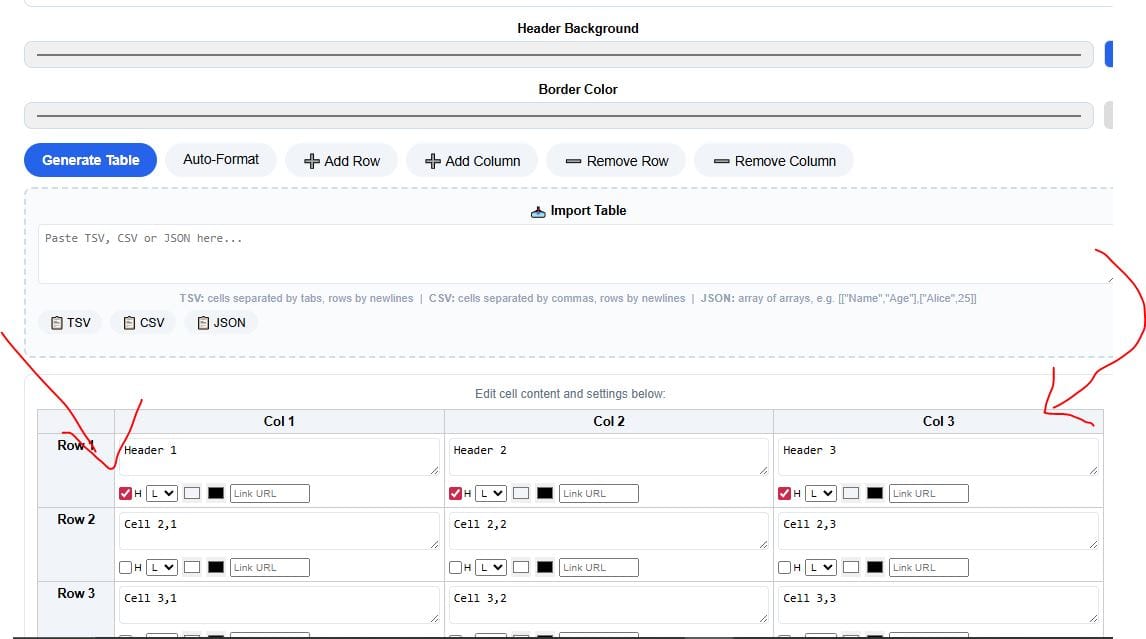
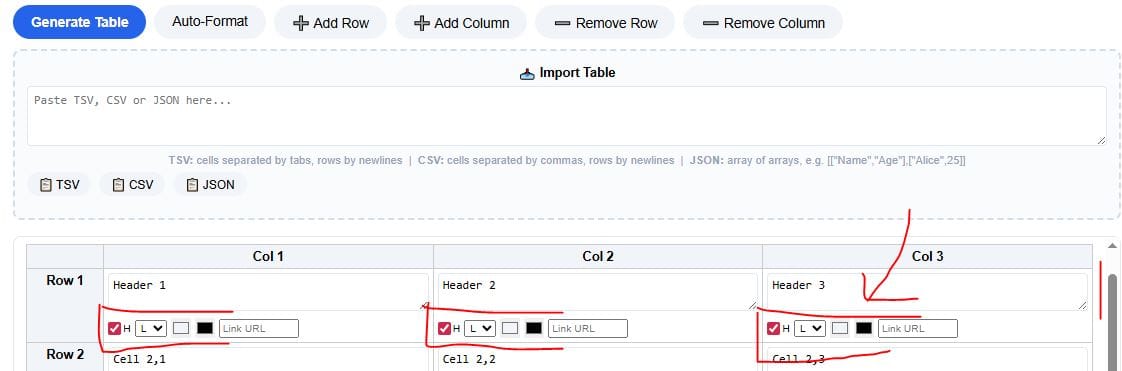
Each cell has a text area where you can type your content. You can also adjust:
H checkbox – makes a cell a header (useful for bold titles)
Alignment – left, center, or right
Background color – custom colors for cells
Text color – change text color
Link URL – add clickable links to any cell
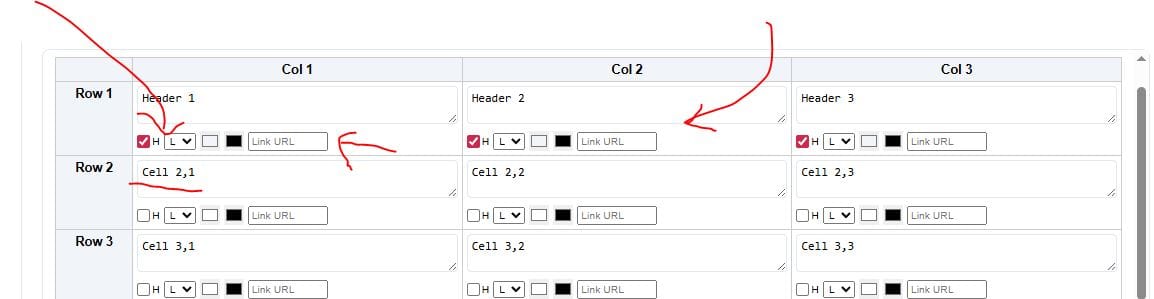
Fill in your data row by row. For our pricing table, as an example we used:
Row 1 (Header): Plan, Price, Features, CTA
Row 2: Starter, $19/mo, "5,000 contacts, 3 funnels, Email automation", Start Free Trial
Row 3: Professional, $49/mo, "25,000 contacts, 10 funnels, Webinars", Start Free Trial
Row 4: Business, $99/mo, "100,000 contacts, Unlimited funnels, Advanced analytics", Start Free Trial
Row 5: Enterprise, Custom, "White-label, dedicated support", Contact Sales
Pro Tip: Import Your Data
If you already have data in a spreadsheet, you can skip manual typing entirely!
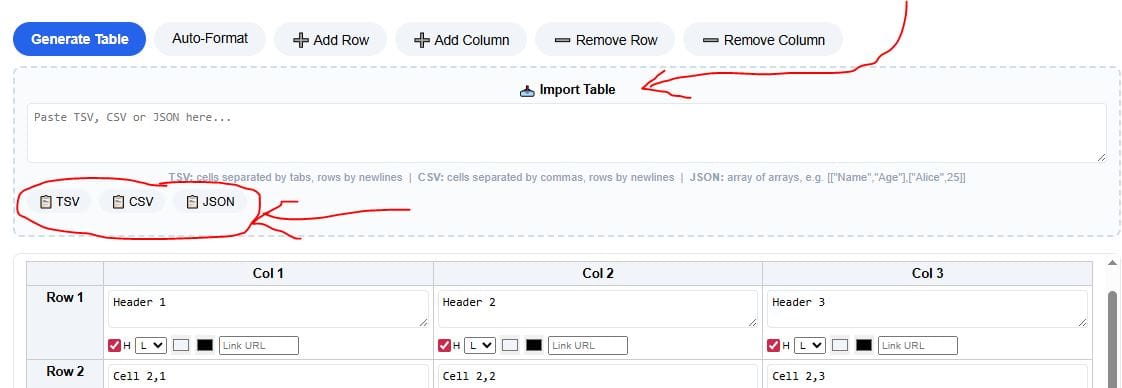
Click on the Import Table section and paste your TSV, CSV, or JSON data – then click the corresponding button. The table will populate instantly.
Here's the CSV for the pricing table we just created – copy it, paste it into the import area, and click CSV:
Plan,Price,Features,CTA
Starter,$19/mo,"5,000 contacts, 3 funnels, Email automation",Start Free Trial
Professional,$49/mo,"25,000 contacts, 10 funnels, Webinars",Start Free Trial
Business,$99/mo,"100,000 contacts, Unlimited funnels, Advanced analytics",Start Free Trial
Enterprise,Custom,"White-label, dedicated support",Contact Sales
Step 4: Customize the Look
Now make it beautiful.
In the settings panel you can:
Header Background – choose a color for your header row
Border Color – set the border color for the entire table
For our example we used these settings:
Header Background: #2563eb (a nice blue)
Border Color: #dddddd (light gray)
Step 5: Generate the Code
Ready? Click the "Generate Table" button.
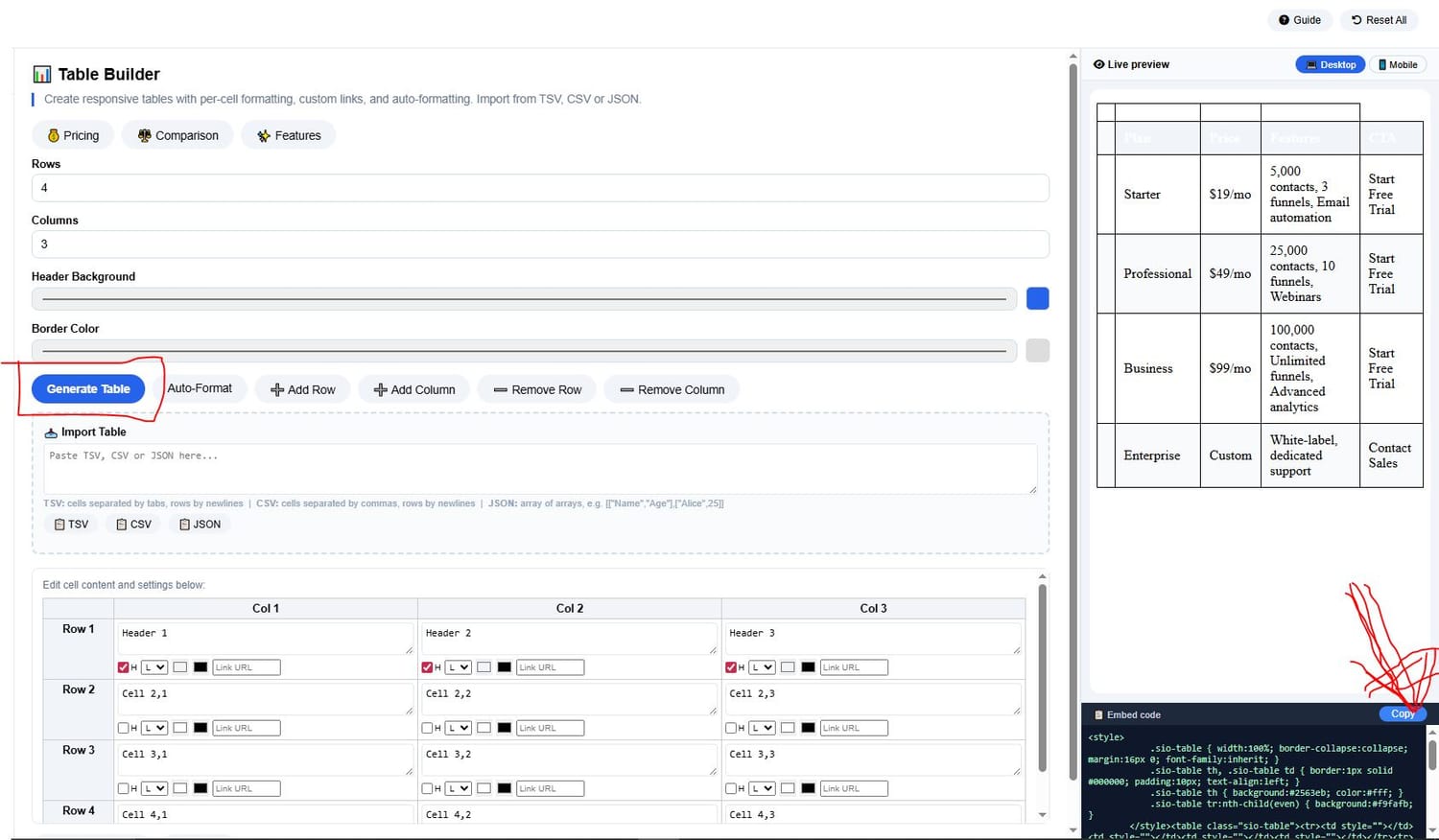
Watch the Live Preview panel update instantly – it shows exactly how your table will look on your Systeme.io page.
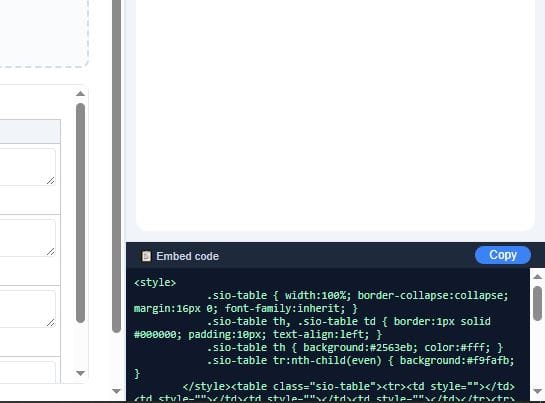
The code will automatically appear in the Embed Code section at the bottom.
Step 6: Copy the Code
Click the "Copy" button in the Embed Code section.
The code is now in your clipboard – it's already formatted as a Systeme.io-friendly HTML fragment, so no extra cleanup needed.
Step 7: Paste Into Systeme.io
Now open your Systeme.io page editor:
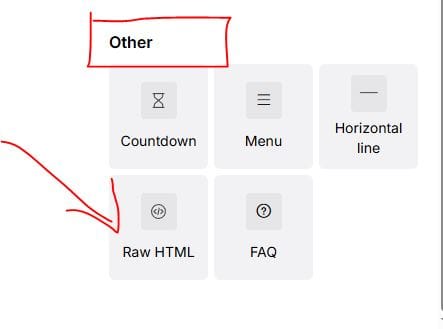
Add a new element – drag a "Raw HTML" block onto your page.
Click the block – in the left panel, click "Edit code".
Paste the code – paste the copied HTML into the popup and click Save.
Save your page – the table will appear on your live page.
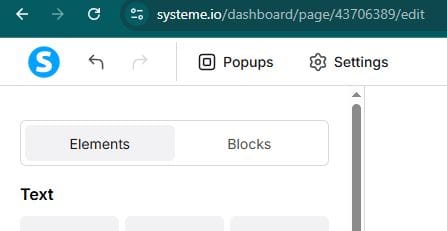
⚠️ Important: The table will NOT show in Systeme.io's Preview mode – you'll see it when the page is published live. This is normal behavior.
What It Looks Like Live
Here's what our pricing table looks like on a live Systeme.io page:
| Plan | Price | Features | CTA |
|---|---|---|---|
| Starter | $19/mo | 5,000 contacts, 3 funnels, Email automation | Start Free Trial |
| Professional | $49/mo | 25,000 contacts, 10 funnels, Webinars | Start Free Trial |
| Business | $99/mo | 100,000 contacts, Unlimited funnels, Advanced analytics | Start Free Trial |
| Enterprise | Custom | White-label, dedicated support | Contact Sales |
Clean, responsive, professional – and it took less than 5 minutes to create.
Other Ways to Use the Table Builder
The Table Builder isn't just for pricing tables – you can use it for:
| Use Case | Example |
|---|---|
| Feature comparisons | Compare plans, products, or services |
| Product specifications | Display specs side-by-side |
| Course outlines | Show module breakdowns |
| Team directories | List team members with roles and contact info |
| Data displays | Show statistics, reports, or metrics |
The import feature also makes it easy to pull data from spreadsheets or databases.
Troubleshooting Tips
| Issue | Solution |
|---|---|
| Table doesn't show in preview | Publish the page – it will appear live |
| Headers aren't styled correctly | Make sure the "H" checkbox is checked for header cells |
| Colors don't look right | Adjust Header Background and Border Color settings, then regenerate |
| I want to add more rows/columns | Use the ➕ Add Row / ➕ Add Column buttons before generating |
Make It Your Own, Choose your own preferences
Once you've generated the code, you can:
Change colors – update the header background or border color
Modify content – edit text in the table editor before regenerating
Add links – use the link field in any cell
Import data – update the table quickly using TSV/CSV/JSON
The tool saves your settings in your browser, so you can come back later and pick up where you left off.
Okay, Now You're Done
You just created a professional, responsive pricing table for your Systeme.io page – and without writing a single line of code.
After following this simple tutorial, here's what you accomplished:
✅ Built a clean, modern table
✅ Customized colors and styling
✅ Imported data (or typed it manually)
✅ Generated Systeme.io-ready HTML
✅ Published it to your live page
Check out the Dark Mode tutorial if you're interested to add a stylish dark/light toggle to your Systeme.io site in minutes.
Found a bug or have a feature request? Please Let me know - this tool is actively maintained and your feedback helps me make it better.
Cheers!
COMMENTS
BE THE FIRST TO LEARN NEW WAYS TO MAKE MONEY
Learn how to earn money without being 100% involved in the process. Even if you're a beginner.
Learn how to start a private community where people will pay to access your content.
Algorithmic trading uses trading advisors to place trades on the markets to earn profits while you're somewhere else.

12 creative and realistic ideas to turn 10k into 100k for profit. Read more

The New Way to Start Affiliate Marketing. How to make it less time consuming while earning more even as a beginner. Read more


By Julian Croft
Julian Croft (Jesse) is the founder of The Hustle Nation, a blog dedicated to helping introverts build genuine passive income (not the hyped one) through faceless, sustainable methods. After a decade in data analysis, he now uses his research skills to cut through the online hype and deliver actionable, trustworthy advice.




The Hustle Nation is your #1 community to find passive income ideas for introverts, side hustle ideas, online side jobs. Join part-time hustlers on the path to financial freedom with proven strategies, tools, and inspiration to benefit from your free time. Learn newest tricks to earn money on the internet without showing your face on a camera. All our posts are not financial advise. Always do Your Own Research for informed decision.